TV Audio Not Working? HDMI ARC/eARC, CEC, PCM and Optical Troubleshooting
Fix TV audio silence, dropouts and lip-sync problems by testing HDMI ARC/eARC, CEC, PCM, source formats and optical fallback in the right order.
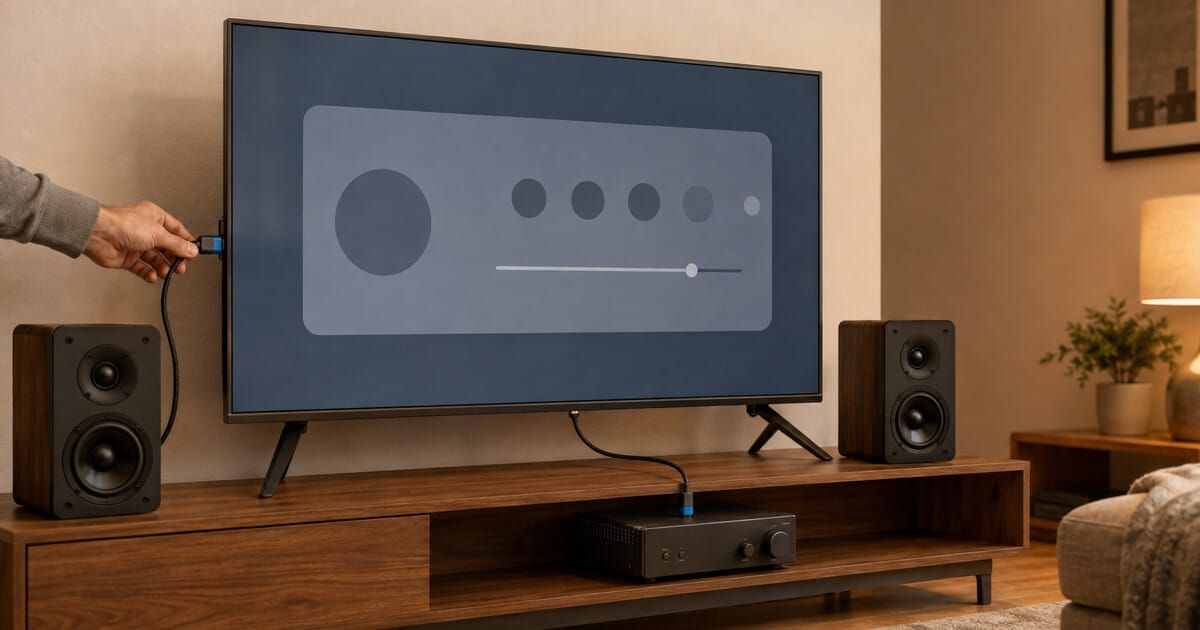
If a television shows a picture but your soundbar, amplifier or powered speakers stay silent, do not start by replacing everything. First prove the signal path with the correct ARC/eARC ports, HDMI-CEC enabled and a stereo PCM test. Then add surround formats and external sources one at a time.
Save a short record of your TV-audio test
Use the baseline sequence below, then record one change at a time. This makes a support request more useful and helps you return to the last working setup.
- Devices: exact TV and audio-product models; connected ARC/eARC port labels.
- Working baseline: which built-in TV source was tested, selected audio input and stereo PCM result.
- Change tested: one external source, format, CEC setting or cable change.
- Result: sound, silence, dropout or lip-sync problem; note when it starts.
- Recovery: the last settings that restored sound, plus any manufacturer instructions followed.
Save the notes privately. Do not include passwords, full serial numbers or account details in a public problem report. If the issue turns out to be choosing a system rather than fixing a fault, use the TV-and-music system architecture guide.
The fastest safe test
- Use the labelled ports. Connect the TV port marked
ARCoreARCto the audio product’s port markedHDMI OUT (ARC/eARC),TVor the equivalent named in its manual. An ordinary HDMI input on either product may not return TV audio. - Select the external audio system. In the TV’s Sound menu, choose Receiver, HDMI audio system, ARC/eARC, soundbar or the manufacturer’s equivalent—not TV Speakers.
- Enable HDMI-CEC and ARC/eARC. CEC may be branded Anynet+, Simplink, Bravia Sync or another name. The audio product may also require ARC/eARC or TV Audio to be enabled.
- Select the right audio input. Put the receiver, streaming amplifier or active speaker system on TV Audio, HDMI ARC or eARC.
- Set the TV to Stereo PCM. Test a built-in TV app first. PCM is a diagnostic baseline, not necessarily the final setting.
- If it works, add complexity slowly. Try the external console or player, then Auto, Pass-Through, Dolby or another supported surround format. The first change that breaks sound identifies the branch to investigate.
Verified fact HDMI Licensing describes eARC as the return path that sends audio originating in a TV, streaming app or connected source to an AVR or soundbar through the HDMI link. WiiM, Sonos and Samsung all instruct users to use the specifically labelled ARC/eARC port; a different HDMI socket is not an interchangeable choice for this job.
ARC, eARC and CEC do different jobs
ARC/eARC carries the audio
Audio Return Channel sends TV sound “back” along an HDMI connection to an audio system. eARC expands format and bandwidth capability beyond the original ARC design, but the exact formats still depend on the TV, source and audio product.
CEC handles control and coordination
Consumer Electronics Control lets products exchange commands such as power, volume and input behavior. Many real installations require CEC to be enabled for ARC/eARC setup and control, even though CEC is not the audio format itself.
That distinction explains a common symptom: sound works, but the TV remote cannot control volume or the audio system does not wake correctly. The audio path may be healthy while CEC control is disabled, blocked or confused by another HDMI device. The reverse is also possible: the TV can display the receiver name and move a volume indicator while the selected audio format is unsupported.
Do not diagnose eARC from the connector shape or a generic “HDMI 2.1/2.2” marketing line. HDMI Licensing says eARC is generally not something that can be added through firmware and is not defined as automatically backward-compatible with every ARC product. Check the exact TV and audio-product manuals. For a cleaner overview of connection architectures rather than fault isolation, see TV + Music Stereo: Three Clean System Architectures.
Understand the complete signal path
A blank link anywhere in that chain can create the same silence. This is why “the HDMI cable must be bad” is too early a conclusion. A built-in TV app removes the external source and its input from the test. Stereo PCM removes most surround-format negotiation. TV speakers remove the return channel and external audio product. Each comparison shortens the suspect list.
Test one known source before testing everything
Start with a built-in streaming app, free-to-air channel or a simple video file that definitely produces sound through the TV’s own speakers. Then switch the TV output to the external audio system without changing the content. If that works, the core TV-to-audio connection is operating. If a console or disc player remains silent afterward, concentrate on that source’s audio format and the TV’s pass-through behavior.
Editorial inference “TV apps work but the console does not” is strong evidence against a total ARC/eARC hardware failure. It points toward the console, its HDMI input, its chosen format or the TV’s handling of that format. It does not prove which one is responsible.
PCM is a diagnostic tool, not a universal best setting
Stereo PCM is the most useful first format because many two-channel amplifiers, powered speakers and streamers accept it, and it avoids a decoder mismatch with Dolby or DTS. WiiM’s current no-sound guidance, for example, tells owners to select Stereo PCM for the original WiiM Amp; some newer WiiM models also accept specified Dolby formats. Sonos similarly recommends trying Stereo/PCM when TV audio stops, skips or falls out of sync.
If PCM works and Auto, Bitstream or Pass-Through does not, the connection itself is carrying audio. The unresolved question is format compatibility. Read the audio product’s input-format table, not only the TV’s output menu. “Dolby Atmos” is also not one single transport: Sonos documents Atmos arriving through Dolby Digital Plus or Dolby TrueHD on compatible products, with different ARC/eARC requirements.
| Test result | What it suggests | Next check |
|---|---|---|
| Stereo PCM works; surround does not | ARC/eARC path works, but one device may not pass or decode the chosen surround format | Match source output, TV pass-through and audio-product format support |
| TV apps work; one external source is silent | Source format or that HDMI input/path is the likely branch | Set the source to PCM, then add supported surround formats |
| Every source is silent | Port, output selection, CEC/ARC setup, cable or audio-product input remains suspect | Return to the six-step baseline test |
| Sound works but is only stereo | PCM baseline may still be selected, or the TV/source may be downmixing | Confirm channel indication and supported ARC/eARC formats |
| Sound works until the source changes | Auto switching, CEC behavior or source-specific format negotiation may be failing | Select TV Audio manually and compare the old and new source formats |
Use the correct ports at both ends
Many TVs have several HDMI inputs but only one return-channel port. It is usually labelled ARC or eARC/ARC. The audio end is easy to misread: an AVR commonly receives TV audio through an HDMI output labelled for the TV, while a soundbar or stereo component may use a dedicated ARC/eARC input. Follow the arrows and wording in the exact manual.
A standard HDMI input on a compact amplifier is not proof that it accepts ARC. Conversely, a TV’s ordinary HDMI input can accept a console picture while being unable to send the TV’s audio out through that same socket. The SoundPath Lab Product Database now covers hundreds of model records, but the manufacturer manual remains the final authority for port direction and supported formats.
Reseat before replacing
Power the system down, unplug and firmly reconnect the HDMI cable at both ends. Check that strain from a wall mount or cabinet is not pulling the plug sideways. Then try one known-good, appropriately certified cable of practical length. HDMI Licensing says Ultra High Speed HDMI Cable is designed to support eARC; older Standard or High Speed cables with Ethernet may work, but are not certified for eARC operation.
A new cable is a test, not a ritual. If PCM, CEC and every source remain unchanged after the swap, the original cable was not the useful variable.
Enable the right TV and audio-product settings
Menu names vary by brand, year and region, but the required ideas are consistent:
- HDMI-CEC enabled on the TV. Samsung calls it Anynet+; LG uses Simplink; Sony uses Bravia Sync.
- ARC or eARC enabled or set to Auto where the TV exposes a separate control.
- Sound Output set to the external HDMI audio system rather than internal TV speakers.
- The audio device’s TV Audio, ARC or eARC input selected and not hidden or disabled.
- A format the audio device actually accepts—beginning with Stereo PCM.
- Mute off and volume set conservatively on the real master volume device.
If the system includes a streamer, DAC or powered speaker with variable output, verify that only one device is acting as the safe everyday master. The separate guide Fixed or Variable Line Output? How to Set Volume Safely explains that gain-structure decision.
Isolate CEC conflicts one device at a time
CEC is shared across the HDMI system, so a cable box, console or player can affect an audio product connected to another socket. Sonos documents a specific “CEC broadcast blocked” error and recommends disconnecting the other HDMI devices, confirming TV audio, then reconnecting each device one at a time until the conflict returns. Samsung likewise advises removing external HDMI devices when ARC/eARC will not connect.
Use that method even when your equipment is not Sonos or Samsung:
- Leave only the TV and audio product connected by ARC/eARC.
- Confirm sound from a built-in TV source using Stereo PCM.
- Reconnect one external HDMI source and retest.
- Repeat until the fault returns.
- Check the newly added device’s CEC and audio-output settings before blaming the TV.
Power-cycle in a controlled order
ARC/eARC and CEC depend on device discovery and state. A restart can repair a stale handshake, but restarting everything at random makes the result hard to interpret. Finish the basic settings first. Then turn off the TV, audio product and external source, disconnect power briefly, reconnect the HDMI cable, power the audio product, power the TV and finally power the external source. Confirm the correct input after startup.
WiiM’s current HDMI no-sound procedure tells users to turn off and unplug the TV and WiiM device for about 30 seconds. Sonos also places reboots near the beginning of dropout and lip-sync troubleshooting. The exact order is an editorial troubleshooting sequence rather than a universal HDMI rule; follow the manufacturer's specified sequence when one exists.
When optical is the useful fallback
Optical can prove that the TV and audio product exchange a basic digital signal even when ARC/CEC remains troublesome. Select Optical or Digital Audio Out on the TV and the matching optical input on the audio product. Remove any plastic dust caps, seat the connector fully and use Stereo PCM first. With the audio product end disconnected, many optical outputs show a red light; Sonos uses this as one official cable-path check.
Optical is not a like-for-like replacement for every HDMI feature. WiiM notes that TV-remote volume control is unavailable over the optical connection on its cited product, and Sonos notes that CEC-based TV control does not operate through optical. Format capacity also differs by product. Use optical because its documented limits fit the system—not because its cable is assumed to sound better.
Editorial troubleshooting recommendation If optical works immediately and ARC/eARC does not, keep optical connected long enough to confirm stable everyday playback. Then decide whether HDMI control, higher-bandwidth formats or fewer remotes justify further ARC/eARC work. A reliable stereo system is better than a theoretically richer format that repeatedly loses sound.
Fix dropouts without guessing
If sound starts correctly but stops or skips, record whether the fault follows all sources, one format or one external device. Check the cable for kinks and strain, test PCM, update the TV and audio-product firmware, then retest the same scene. Sonos recommends PCM as a comparison when interruptions appear only with Dolby Digital; that result suggests the TV may not be passing the format consistently.
Do not confuse a TV-input dropout with a network-audio dropout. A streaming amplifier may play music perfectly over Ethernet or Wi-Fi while its HDMI input fails, because the two paths use different hardware, firmware and formats. Use Wi-Fi or Ethernet for a Network Streamer? only when the network path itself is affected.
Fix lip-sync in the right direction
First decide whether audio is behind the picture or ahead of it. A delay control can only move sound later; it cannot make already-late sound arrive earlier.
If audio is behind the picture
Restart the TV and source, disable unnecessary sound processing, and test Stereo PCM. Sonos identifies extra processing in the TV or source as a common cause and notes that switching from surround to PCM can remove delay, at the cost of surround sound. Game modes can reduce video processing, but their behavior is model-specific; verify the whole picture-and-audio result rather than assuming the label fixes both.
If audio is ahead of the picture
Use the TV, receiver or soundbar’s lip-sync/dialog-sync control to delay the audio until speech matches the picture. Adjust in small steps while watching a close-up of speech. If the required correction changes between the TV’s own apps and an external source, store per-input delay where supported or investigate the slower branch instead of applying one extreme global value.
Symptom guide
| Symptom | Likely branch | Best first test |
|---|---|---|
| No sound from anything | Wrong port, output, ARC/CEC setting, input or cable | Built-in TV app + labelled ports + Stereo PCM |
| TV remote changes an icon but not real volume | CEC/control path or wrong master volume | Confirm CEC and the audio product’s volume mode |
| Built-in apps work; console is silent | Console format or TV pass-through | Set console to PCM and retest |
| PCM works; Atmos or surround is silent | Unsupported format or ARC/eARC capacity | Read support tables for all three devices |
| Sound disappears when another HDMI device is attached | CEC conflict | Reconnect devices one at a time |
| Optical works; ARC does not | ARC/eARC/CEC negotiation rather than total audio failure | Recheck CEC, ports, firmware and HDMI cable |
| Hum appears through an analogue fallback | Analogue grounding/cable path | Return to the safe digital path and use the hum and buzz guide |
Before buying an adapter or replacement product
- Write down the exact TV, audio product and source models.
- Confirm which sockets are ARC/eARC and their direction.
- List the formats each source can output, the TV can pass and the audio product can decode.
- Decide whether stereo PCM is enough or whether lossless multichannel audio is a hard requirement.
- Confirm whether TV-remote volume, automatic power and input switching are required.
- Test a known-good HDMI cable and optical fallback before buying a converter.
- Check firmware release notes for the exact models and region.
Buying a generic “HDMI audio extractor” without verifying ARC/eARC direction, EDID, supported formats, HDCP behavior and CEC pass-through can add another incompatible device. If the system goal is still unclear, use the System Builder or compare powered and passive speaker systems before changing the architecture.
What is verified, inferred and recommended
Verified fact ARC/eARC must use specifically supported ports; HDMI-CEC commonly needs to be enabled; source, TV and audio product must agree on an audio format; eARC supports higher-bandwidth formats than original ARC; optical does not carry HDMI-CEC control.
Editorial inference When a built-in TV app plays correctly over ARC/eARC but one external source does not, the external source path is more likely than a total return-channel hardware failure. When PCM works but surround does not, format handling is more likely than complete cable failure.
Editorial troubleshooting recommendation Photograph menus, test a built-in source, start with PCM, disconnect extra HDMI devices and make one change at a time. These practices preserve useful evidence; exact menu names and restart order remain model-specific.
Applicability, limits and disclosure
Applies to: consumer televisions connected by HDMI ARC/eARC or optical digital audio to soundbars, AV receivers, stereo receivers, streaming amplifiers and powered speaker systems. The diagnostic logic is region-independent.
Version and regional limits: menu names, format licensing, firmware behavior and supported pass-through formats vary by model, production year, source app and country. Samsung’s cited ARC page was updated on 5 June 2026 in the Swedish locale; WiiM’s cited HDMI articles and firmware pages were current when checked on 26 August 2026; Sonos support content was checked the same day. Always use the manual and support page for the exact model and region.
Not covered: in-wall mains work, damaged HDMI sockets, board-level repair, commercial HDMI distribution, matrix switchers, projector-specific return paths, custom-control programming or certification testing. Stop using any product that smells hot, shows physical connector damage or repeatedly trips power protection; contact qualified service.
Disclosure: This guide combines cited manufacturer support instructions with clearly labelled editorial troubleshooting suggestions; it is not a report of independent testing of every device combination. Brand examples document support behavior and are not rankings or purchase recommendations. The cover is an AI-generated editorial illustration of unbranded equipment, not a product test photograph.
Sources
- HDMI Licensing Administrator — Enhanced Audio Return Channel: eARC purpose, supported high-bandwidth formats, cable guidance and compatibility limits.
- WiiM — Troubleshooting No Sound Issues with HDMI TV Input: labelled ports, CEC, TV output, PCM/Dolby model limits, source selection and restart steps.
- WiiM — Use Audio Input Ports of the WiiM Bar: eARC connection, optical fallback and TV-remote limitation.
- Sonos — HDMI Error in the Sonos App: CEC conflicts and one-device-at-a-time isolation.
- Sonos — No Sound from a Home Theater Product: optical checks and source-format compatibility.
- Sonos — TV Audio Stops or Skips: cable, firmware and PCM comparison tests.
- Sonos — TV Audio and Video Are Out of Sync: processing, PCM and directional lip-sync correction.
- Samsung — Use HDMI ARC on a Smart TV: ARC ports, Anynet+/CEC, TV output selection and current menu examples.
- Samsung — What Is eARC and How to Set It: eARC format table, external-device isolation and PCM/Auto/Pass-Through comparison.
Last checked: 26 August 2026. Recheck the exact TV, source and audio-product manuals after firmware updates or before buying an adapter.
WiiM amplifier-specific format check
Before changing cables, confirm the model limits. The original WiiM Amp uses stereo PCM as the safe TV baseline and retains AirPlay. Amp Pro and Amp Ultra are documented Dolby Digital 5.1 hubs, but not Dolby Atmos or DTS hubs, and neither supports AirPlay. Compare WiiM Amp, Amp Pro and Amp Ultra before treating a format limitation as an ARC fault.
Compatibility record last checked: September 12, 2026.
For model-level format limits before troubleshooting, compare ARC, eARC and optical formats by product.
Continue the research
Move from this article to a verified product decision
Use descriptive links to move between product records, brand evidence, comparisons, setup or issue guidance, and compatible-system tools. Inclusion reflects subject relevance, not a score or endorsement; product facts, recommendation eligibility, and commercial links remain separate.
Product page
Verify the exact model
Brand center
Check the wider platform
Related comparison
Compare the system role
Setup, firmware & problems
Check behavior before buying
System Builder & compatibility