
Arylic B50 and BP50 Firmware Update Guide: Fix Sudden Volume Changes
Verified Windows firmware update steps for Arylic B50 and BP50, including the B50 two-stage update to version 64 and USB connection troubleshooting.
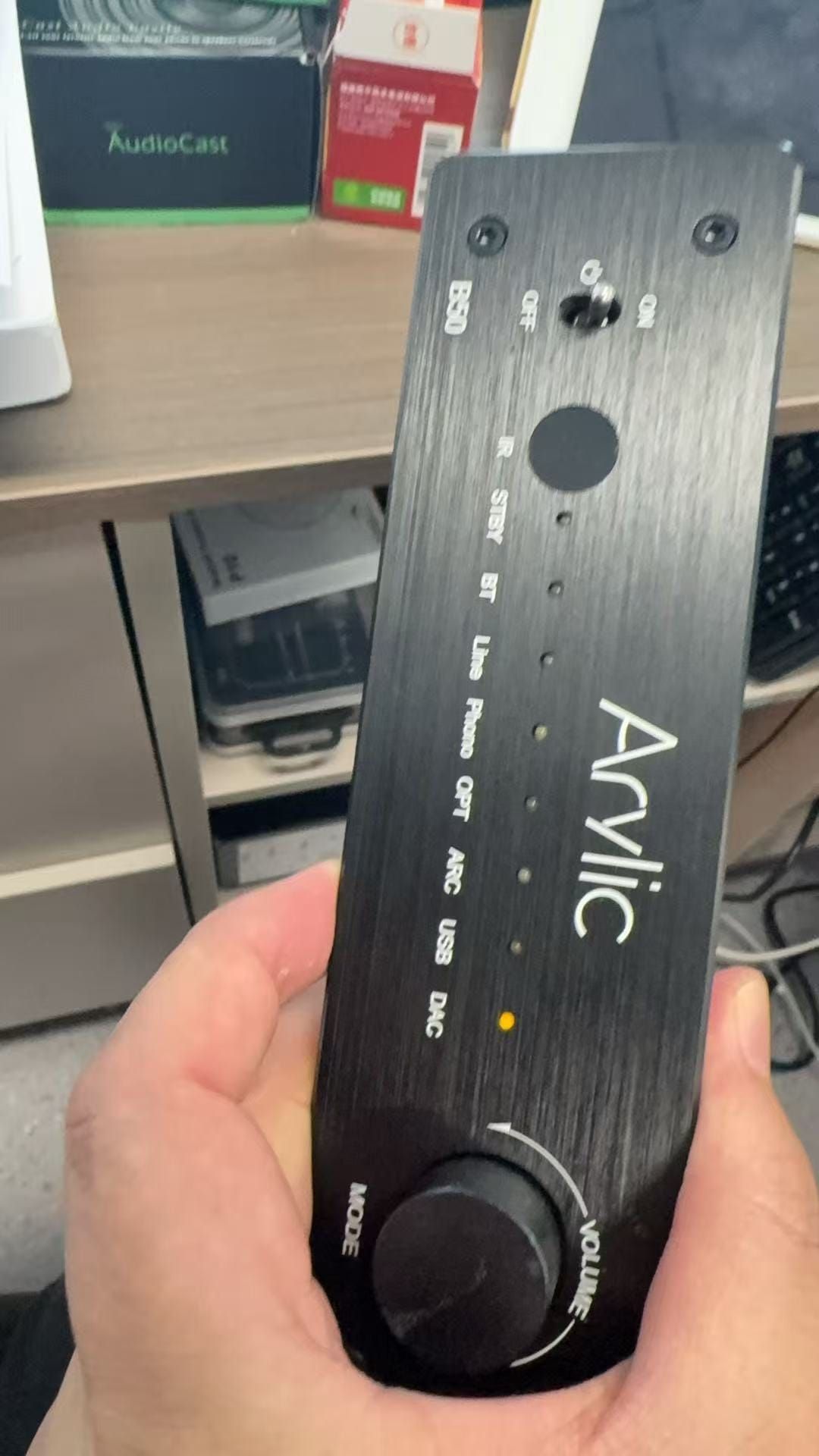
A sudden jump in output volume is not something to ignore. For affected Arylic B50 and BP50 units, a firmware update may improve stability and address abnormal volume behavior. This guide explains the verified Windows update process using the Arylic Update V1.0.0 utility.
IMPORTANT: B50 AND BP50 USE DIFFERENT FIRMWARE
Do not install firmware intended for another model.
• Arylic B50: first install local firmware 61-ab52dbca, then update once more to 64-43eaa832 through the update utility. The verified final version is 64-43eaa832.
• Arylic BP50: use ARYLIC_BP50-0063-0e74fa98-20251125.MVA. Its verified firmware version is 63-0e74fa98.
• Arylic B50SE: this guide does not currently include a separately verified B50SE firmware file. Do not assume that the B50 package is compatible.
WHAT YOU NEED
• A Windows computer
• The Arylic Update V1.0.0 utility
• The correct firmware file for your exact model
• A USB Type-C cable that supports data transfer
• The device’s normal power supply
Many USB-C cables are charging-only cables. If the updater shows “USB not connected,” use another cable known to carry data before assuming there is a problem with the device.
BEFORE STARTING
Connect the Arylic device to its normal power supply.
Switch the device on.
Connect the device to the Windows computer with a data-capable USB Type-C cable.
Restart the device if necessary.
Use the MODE control to select DAC mode. On the B50, the DAC indicator on the front panel should light.
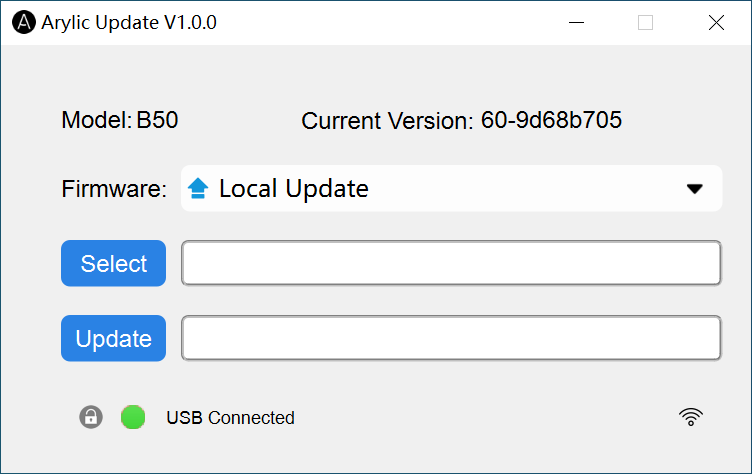
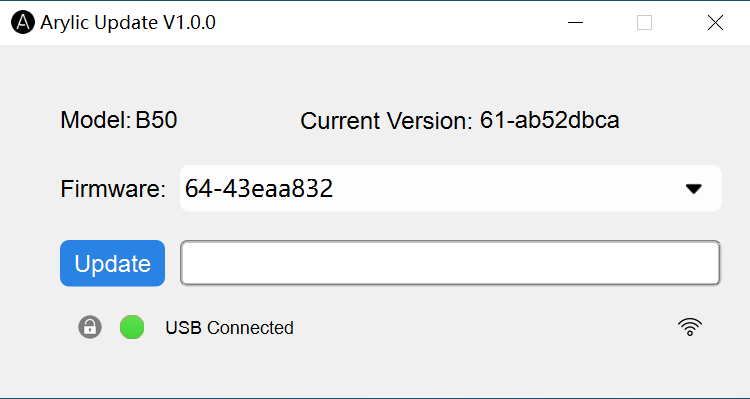
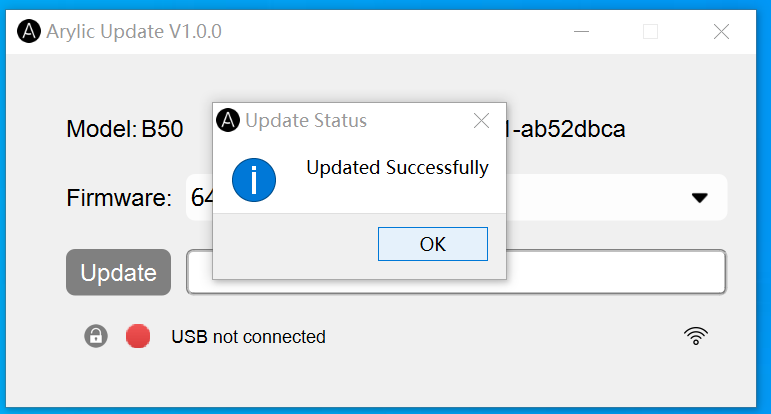
Open Arylic Update V1.0.0 and confirm that the bottom of the window shows a green indicator and “USB Connected.”
Do not begin the update while the utility says “USB not connected.”
B50 UPDATE: STAGE 1 — INSTALL VERSION 61
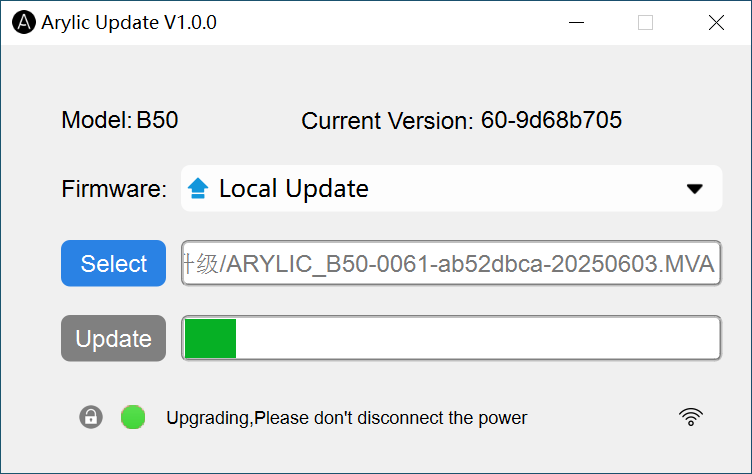
In Arylic Update V1.0.0, keep Firmware set to “Local Update.”
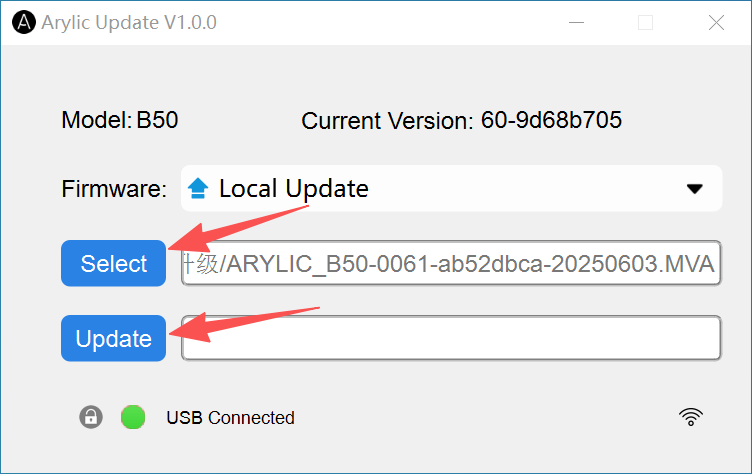
Click “Select.”
Choose ARYLIC_B50-0061-ab52dbca-20250603.MVA.
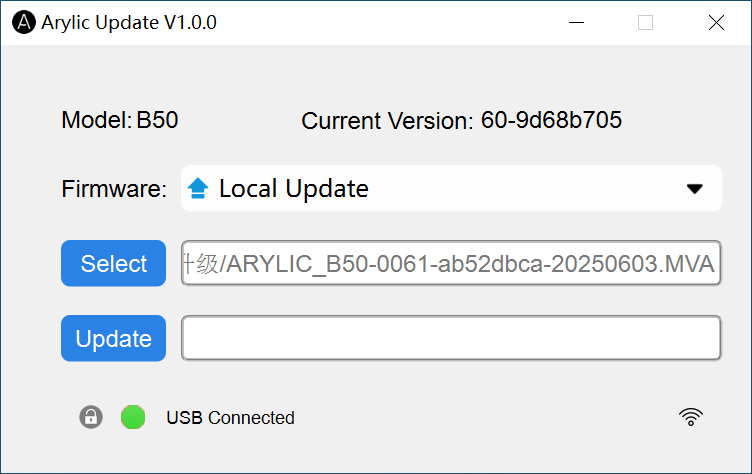
Confirm that the selected file appears in the utility.
Click “Update.”
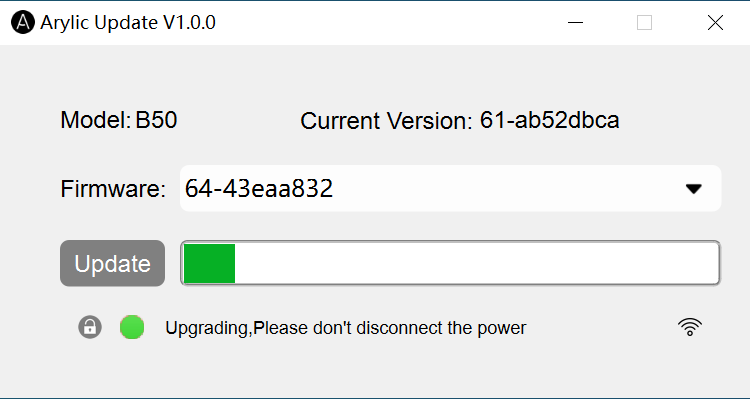
Wait while the progress bar moves. The utility displays “Upgrading, Please don’t disconnect the power.”
Do not remove the USB cable, switch off the device, close the updater, or disconnect the power supply.
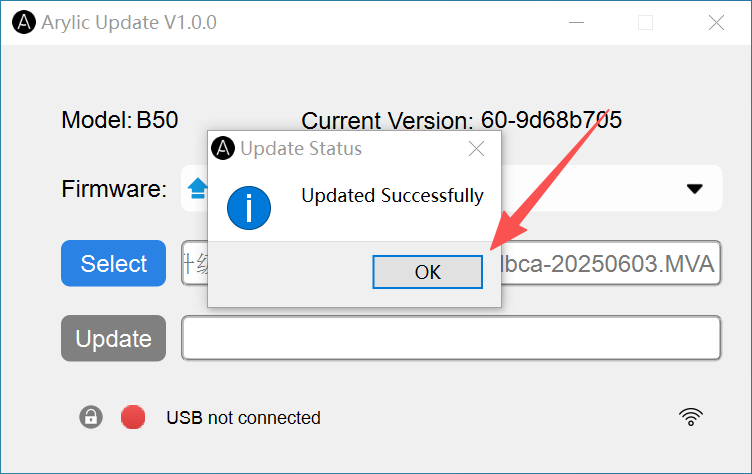
When “Updated Successfully” appears, click “OK.”
Allow the device to restart, reconnect it if required, and return it to DAC mode.
Confirm that the current version is 61-ab52dbca.
B50 UPDATE: STAGE 2 — UPDATE TO VERSION 64
After version 61 has been installed and the device is connected again:
Open the firmware drop-down menu in Arylic Update V1.0.0.
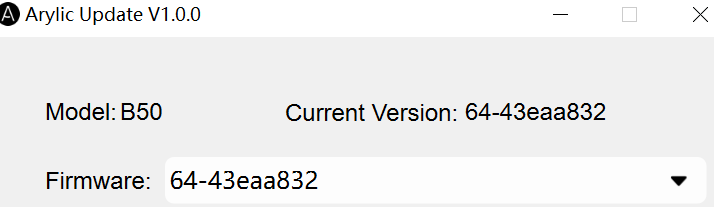
Select 64-43eaa832.
Click “Update.”
Keep both power and USB connected until “Updated Successfully” appears.
Click “OK” and allow the device to restar
t.
Reconnect the device in DAC mode and verify that “Current Version” now shows 64-43eaa832.
If the updater does not offer version 64 after the first stage, do not substitute another model’s file. Check the internet connection, reopen the utility, reconnect the B50 in DAC mode, and try again.
BP50 UPDATE — INSTALL VERSION 63
Power on the BP50 and connect it to the Windows computer with a data-capable USB Type-C cable.
Restart the device if needed and select DAC mode.
Open Arylic Update V1.0.0 and confirm “USB Connected.”
Choose “Local Update,” click “Select,” and select ARYLIC_BP50-0063-0e74fa98-20251125.MVA.
Click “Update.”
Do not disconnect the power or USB cable during the process.
When “Updated Successfully” appears, click “OK.”
Restart the BP50 and test its normal inputs and volume control.
TROUBLESHOOTING
The updater says “USB not connected”
Check that the device is powered on, that DAC mode is selected, and that the USB cable supports data. Try another computer USB port and then another known-good data cable.
The computer charges or powers something, but the updater cannot detect the device
Charging does not prove that the cable supports data. Replace the cable with one used successfully for phone file transfer or an external USB device.
The update appears to stop
Do not disconnect anything immediately. Give the utility time to finish. If it remains unresponsive for an extended period, record the screen and contact support before power-cycling the device.
Version 64 is not shown for the B50
First confirm that stage 1 completed and Current Version shows 61-ab52dbca. Reopen the updater, confirm the computer has internet access, reconnect the device in DAC mode, and check the firmware drop-down again.
Can the BP50 firmware be installed on a B50?
No. Firmware is model-specific. Installing the wrong firmware may make the device unusable.
AFTER THE UPDATE
Restart the unit, check the displayed firmware version, and test volume adjustment at a low level before reconnecting sensitive speakers or headphones. Then test the inputs you normally use, including DAC, Bluetooth, line, optical, phono, ARC, and USB where applicable.
DOWNLOADS AND SAFETY
Use only firmware supplied for the exact model and hardware revision. Because an incorrect package can damage the device, the download area should clearly separate the B50 updater package from the BP50 version 63 package. If your model name, current version, or updater screen differs from this guide, stop and verify compatibility before continuing.
This guide is based on the supplied update packages and screenshots. It is an independent technical reference and is not a substitute for the manufacturer’s service instructions.
REQUEST THE CORRECT FIRMWARE PACKAGE
For safety, SoundPath Lab does not publish a single unrestricted firmware download link. To request the verified package, email editorial@soundpathlab.com from the address where you want to receive the files.
Please include: (1) exact model — B50 or BP50, (2) current firmware version shown in the update tool, (3) a clear photo of the product label or rear panel, and (4) a screenshot of the updater if an error is shown.
We will check the model and version information before sending the matching update tool and firmware package by email. B50SE firmware is not currently verified through this guide and will not be supplied as a B50 package without separate compatibility confirmation.
VISUAL UPDATE WALKTHROUGH
The screenshots below show the verified B50 process from USB connection through the final version check.
Revision history: Updated September 5, 2026 — added an explicit test configuration and clarified that the verified result covers the update workflow and version checks, not every hardware revision.Test configuration: Windows PC, Arylic Update V1.0.0, a data-capable USB-C cable, B50 firmware 61 then 64, and BP50 firmware 63. No acoustic, output-power or long-term reliability measurement is claimed.
Evidence & verification
Evidence basis: A verified Windows updater workflow, model-specific firmware packages and update screenshots. This is an independent technical reference, not a substitute for Arylic service instructions.
Firmware and versions reviewed: B50 final version 64-43eaa832 after the required 61-ab52dbca stage; BP50 package ARYLIC_BP50-0063-0e74fa98-20251125.MVA and version 63-0e74fa98. B50SE compatibility was not verified and is explicitly excluded.
Last checked: August 7, 2026.
Limitations: Firmware is model- and hardware-revision-specific. A wrong package or interrupted update can make a device unusable; SoundPath Lab cannot verify every regional or later hardware revision remotely.
Commercial disclosure: No payment or product sale determines which firmware is considered verified. Firmware packages are not distributed through unrestricted commercial links.
Manufacturer reference: https://www.arylic.com/
Related reading: https://www.soundpathlab.com/firmware-app-update-tracker/ | https://www.soundpathlab.com/product-issues-limitations/ | https://www.soundpathlab.com/product-issue-feedback/
Continue the research
Move from this article to a verified product decision
Use descriptive links to move between product records, brand evidence, comparisons, setup or issue guidance, and compatible-system tools. Inclusion reflects subject relevance, not a score or endorsement; product facts, recommendation eligibility, and commercial links remain separate.
Product page
Verify the exact model
Brand center
Check the wider platform
Related comparison
Compare the system role
Setup, firmware & problems
Check behavior before buying
System Builder & compatibility