USB-C Is Not a Feature List: Power, USB Audio and Storage Ports Explained
A USB-C connector does not reveal whether a product supports power, computer audio, storage, digital output or all four.
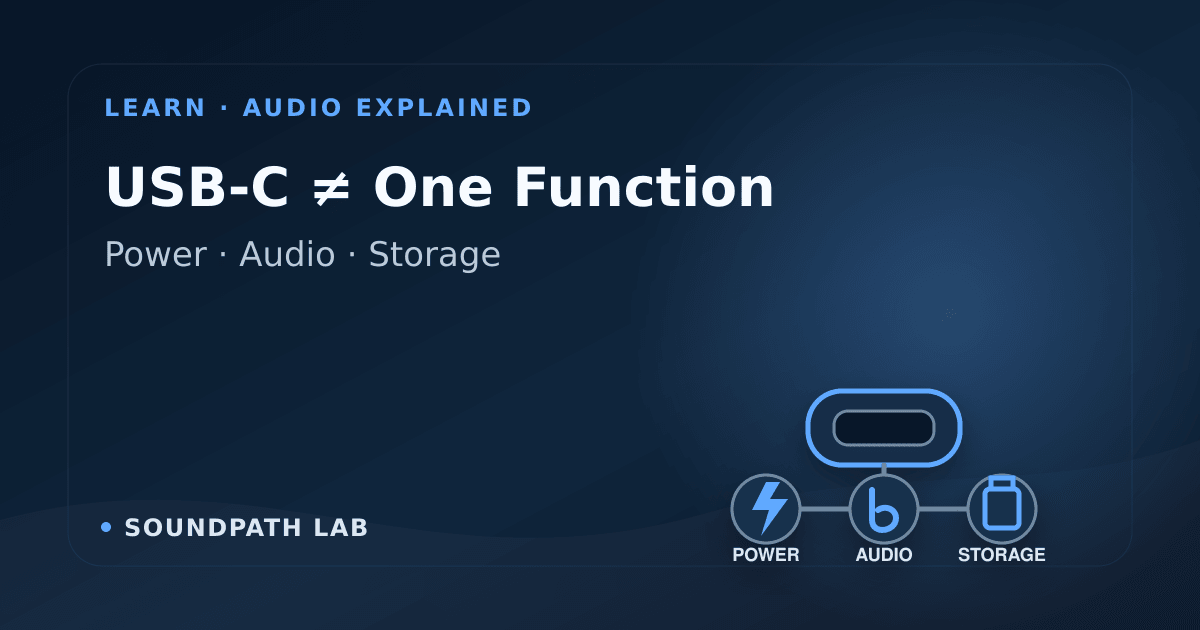
USB-C tells you the shape of a connector. It does not tell you everything the port can do.
On an audio product, an identical-looking USB-C socket may be power only, a USB DAC input, a storage host, a digital output to an external DAC, a firmware-service port—or a combination of roles. USB-A is also not automatically “the audio port.” Its function depends on which side of the USB connection the product was designed to control.
The safe rule is: read the label, manual and signal-flow diagram before connecting equipment. Do not infer direction or capability from connector shape.
The four USB questions to ask
Before buying a cable, answer these in order:
- Who is the host? A computer, phone or streamer normally controls the connection. A USB stick and most DACs are peripherals.
- Which direction does audio travel? Into the product, out of it, or not at all?
- Does the port carry power, data or both? The same cable can carry both when the design supports it.
- What formats, operating systems and power conditions are documented? Connector compatibility does not guarantee driver or format compatibility.
Role 1: power only
A USB-C power input may accept 5 V but expose no audio data path. Connecting it to a computer may power the device without making a new audio output appear in the operating system.
The power label is a requirement or rating, not a statement that the device draws the printed current every second. A product marked 5 V/1 A can draw less under lighter conditions, but the supply should be capable of meeting the documented requirement.
USB Implementers Forum materials separate the USB Type-C connector from USB Power Delivery and other data capabilities. Power Delivery can enable much higher power, but a Type-C connector does not prove that a device negotiates USB PD or supports a particular voltage.
Role 2: USB audio input — the product behaves as a DAC
When a DAC, amplifier or streamer lists USB DAC, PC USB, USB audio input or similar wording, the computer or phone is the source and the audio product is the peripheral.
The product should appear as an audio output device when the operating system recognizes it. Some USB Audio Class products work without a separate driver on current macOS, iOS, Android or Windows systems; others need a manufacturer driver for their full sample-rate or control features.
This is the role used by Arylic S10+. Arylic documents its USB-C port as both a 5 V/1 A power input and a digital audio input from a laptop or PC. The same physical connection can therefore provide operating power and carry audio data.
Role 3: USB host for storage
A streamer with a USB-A host port may read a flash drive or external storage device. In that connection, the streamer is the host and the drive is the peripheral.
That does not mean the port can send audio to an external USB DAC. The firmware needs a USB-audio host implementation for that separate role.
Again, Arylic S10+ is a useful example: its USB-A port is documented for USB-stick playback with an approximately 1,000-song limit, and Arylic explicitly says it cannot be used to connect an external DAC.
Storage support also depends on filesystem, library size, power draw and indexing behavior. A port that handles a small flash drive may not reliably power a bus-powered hard drive.
Role 4: USB audio output — the product is the source
Some network streamers can send digital audio to an external USB DAC. In that case the streamer must operate as the USB host, enumerate the DAC and support its USB Audio Class behavior.
This is not common to every USB-equipped streamer. Look specifically for USB audio output, a supported-DAC list, or a manual diagram showing streamer → USB DAC. A generic “USB” bullet is insufficient evidence.
Why a computer port can be confusing
Traditional computer USB ports do not all offer the same current, signaling speed or Type-C capabilities. Available power depends on the port, controller, negotiation, cable and whether a hub is involved. A computer that powers a small device successfully is not proof that every port will behave identically.
If a manufacturer explicitly supports PC USB audio through the same port used for power, start with a direct computer port and a known data-capable cable. If the device disconnects, restarts or fails when volume, display or networking activity increases, test another direct port or a reputable powered USB hub that preserves the required data connection.
Avoid improvised Y-cables or feeding two power sources into one port unless the manufacturer specifically approves that arrangement.
Charge-only cables are a common failure
Some cables provide power but omit or poorly implement data conductors. The device may turn on while the computer detects nothing.
Use a cable that is explicitly specified for data, not merely charging. Also verify the connector at the computer end: USB-A-to-C and USB-C-to-C cables can both work in appropriate designs, but the host port and product manual still determine compatibility.
A practical troubleshooting sequence
- Confirm the exact port label and manual diagram.
- Use the supplied cable when it is described as a data cable.
- Connect directly to the computer rather than through an unpowered hub.
- Check the operating system's audio-output list.
- Install the current manufacturer driver if one is required.
- Select the USB input on the audio product.
- Start at low volume and a standard format such as 16-bit/44.1 or 48 kHz.
- Only then raise the sample rate or add a hub, adapter or longer cable.
The label matters more than the connector
USB-C is valuable because it is compact, reversible and capable of carrying power and data. Its flexibility is also why the logo or shape alone is not enough.
For audio equipment, write the signal flow in plain language before connecting anything:
- computer → USB audio input on DAC/streamer;
- streamer → USB audio output → external DAC;
- USB storage → host port on streamer;
- power supply → power input.
If the manual does not show your intended arrow, treat the function as unsupported until the manufacturer confirms it.
Sources and further reading
- USB-IF: USB Type-C cable and connector specification overview
- USB-IF: USB Power Delivery overview
- Arylic S10+ official product page
- Optical vs coaxial vs USB audio
Evidence & verification
Evidence basis: USB-IF connector and power documentation plus current manufacturer documentation for the Arylic S10+ example.
Last checked: August 17, 2026.
Limitations: USB behavior is product-specific. This guide cannot replace the manual, supported-device list or driver notes for a particular model. It does not certify cable compliance or guarantee bus power from an unspecified computer port.
Commercial disclosure: No retailer or manufacturer determined the guidance, and SoundPath Lab received no fee for the editorial conclusions stated here. See the Disclosure & Funding policy.
Continue the research
Move from this article to a verified product decision
Use descriptive links to move between product records, brand evidence, comparisons, setup or issue guidance, and compatible-system tools. Inclusion reflects subject relevance, not a score or endorsement; product facts, recommendation eligibility, and commercial links remain separate.
Product page
Verify the exact model
- EMiUZEK B5 product profile
- HiFiMuse Q7 product profile
- iEAST AMP-i20 product profile
- iEAST AMP80 product profile
- iEAST ePlay 2 product profile
- iEAST ePlay 2 Pro product profile
- iEAST M50 product profile
- iEAST olio product profile
- Loxjie A30 product profile
- Loxjie A40 product profile
- Loxjie D40 Pro product profile
- Loxjie D60 product profile
- SMSL AL400 product profile
- SMSL D100 product profile
- SMSL DL200 product profile
- SMSL DP5 SE product profile
- SMSL H400 MK2 product profile
- SMSL N100 product profile
- SMSL RAW-MDA1 product profile
- SMSL SU-1 product profile
- TOPPING A70 Pro product profile
- TOPPING D90 III Discrete product profile
- TOPPING DX3 Pro+ product profile
- TOPPING E70 VELVET product profile
- TOPPING PA5 II Plus product profile
- ZIDOO UHD5000 product profile
- ZIDOO UHD8000 product profile
- ZIDOO Z9X 8K product profile
- ZIDOO Z9X PRO product profile
- ZIDOO Z30 PRO product profile
- ZIDOO Z3000 PRO product profile
Brand center
Check the wider platform
Related comparison
Compare the system role
Setup, firmware & problems
Check behavior before buying
System Builder & compatibility